Accessing and Using the DSRI

Connect to the UM network

You need to be connected to the UM network to access the DSRI.

🐧 On Linux: use openconnect to connect to the UM VPN. You can easily install it on Ubuntu and Debian distributions with apt:

sudo apt install openconnect
sudo openconnect --useragent "AnyConnect" --no-external-auth -u YOUR.USER --authgroup=01 vpn.maastrichtuniversity.nl

🍎 On MacOS and Windows: download and install the Maastricht University VPN client available at vpn.maastrichtuniversity.nl

Access the web UI

Access the DSRI web UI at https://console-openshift-console.apps.dsri2.unimaas.nl

Password

Use your general UM password.

If you do not have access to the DSRI while you think you should, please contact us.

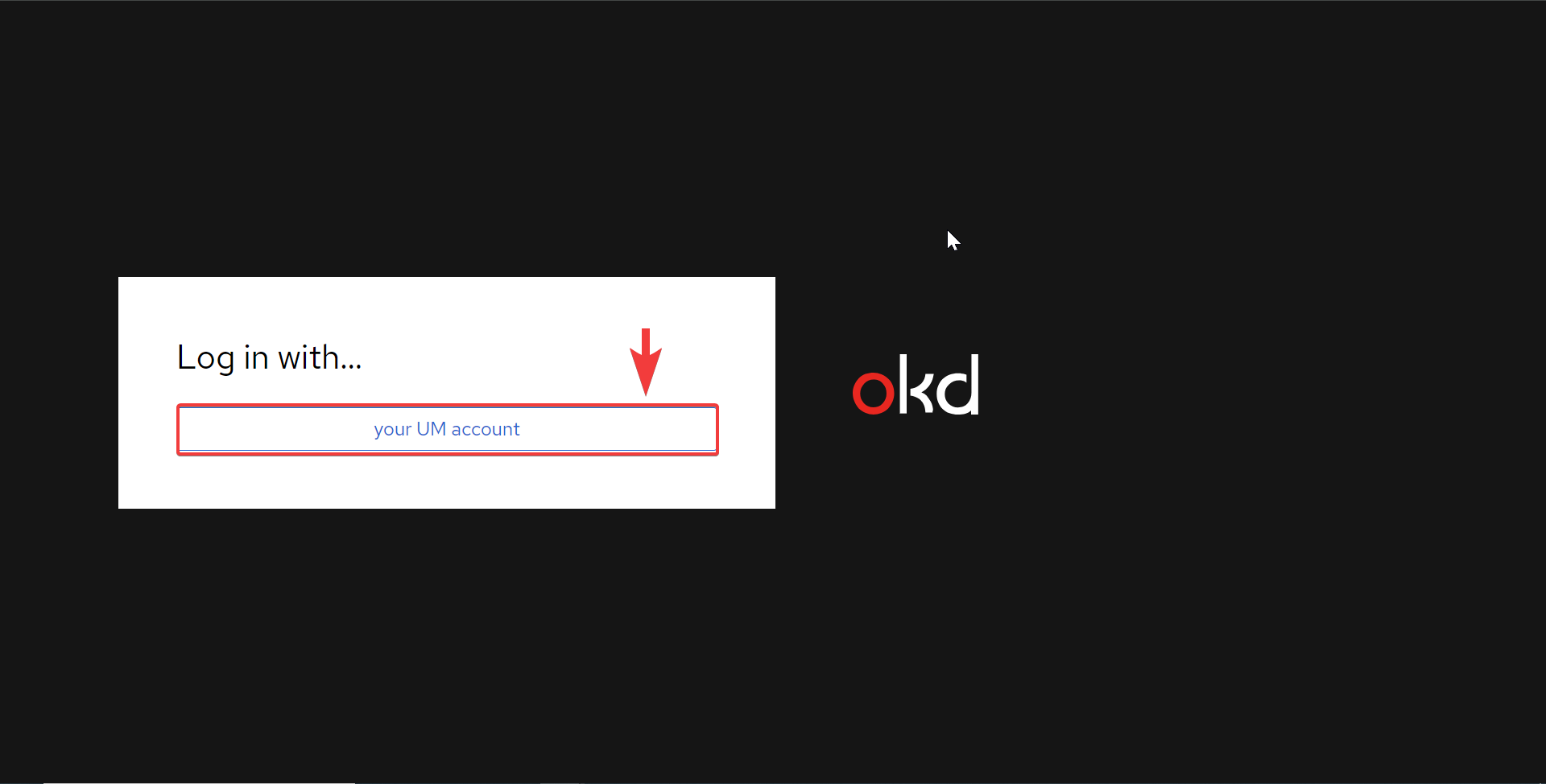
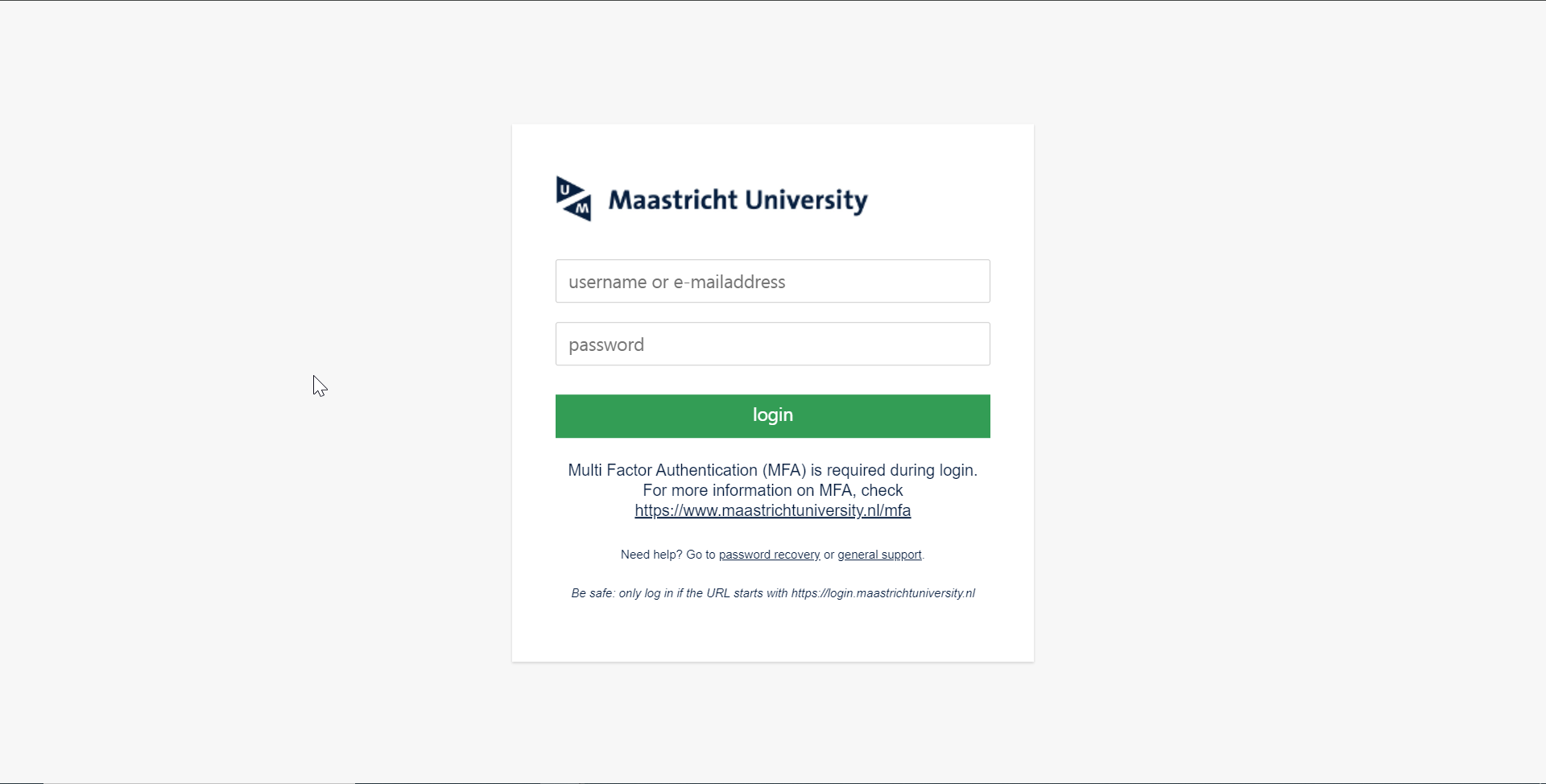
You will be able to login at https://console-openshift-console.apps.dsri2.unimaas.nl using the standard maastricht portal upon clicking the login button:

Login screenLogin screen
Command line interface

We recommend you to install the oc command line interface to perform additional operations on your applications, such as loading large amount of data using oc cp, or deploying an application from a local Dockerfile. Instructions on installing the client can be found ➡ here

Access your project

In the DSRI OpenShift web UI, applications are deployed in projects.

  1. A project is made for you upon providing you access to the DSRI.

  2. Go to your project (applications are deployed in a project).

Reuse your project

You can request a new project when it is necessary. However, you can easily clean up your current project instead of requesting a new one every time you want to change something.

Login screen
Access permissions for developers to your project

You can use the Project view in the Developer perspective to grant or revoke access permissions to your project collaborators. For More Info: Access permissions for developers to your project

About the web UI

Developers can use the web console to visualize, browse, and manage the contents of projects in new version of OKD4.

The OpenShift Container Platform web console provides two perspectives;

  • the Administrator perspective
  • the Developer perspective.

The Developer perspective provides workflows specific to developer use cases, such as the ability to:

  • Create and deploy applications on OpenShift Container Platform by importing existing codebases, images, and dockerfiles.

  • Visually interact with applications, components, and services associated with them within a project and monitor their deployment and build status.

  • Group components within an application and connect the components within and across applications.

Accessing the Developer perspective

You can access the Developer perspective from the web console as follows:

  1. Log in to the OpenShift Container Platform web console using your login credentials.

    • The default view for the OpenShift Container Platform web console is the Administrator perspective.
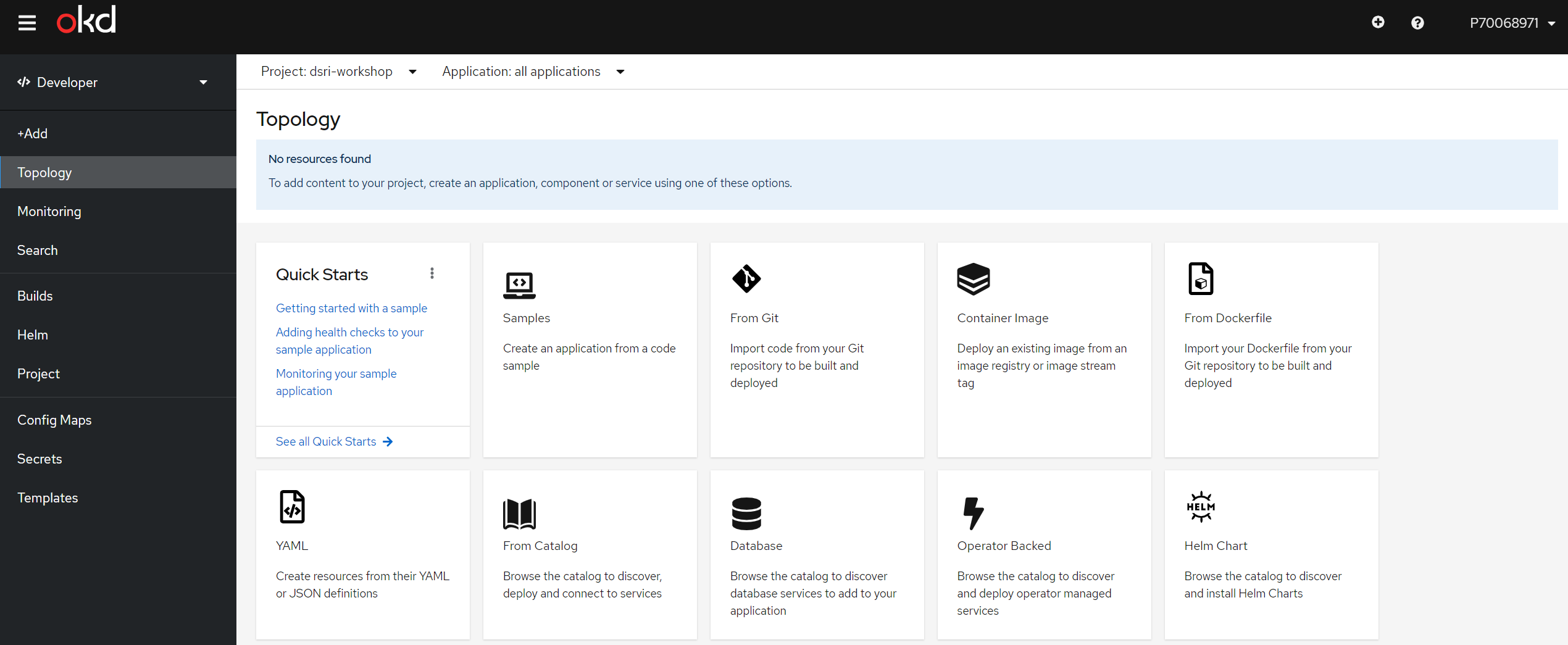
  2. Use the perspective switcher to switch to the Developer perspective. The Topology view with a list of all the projects in your cluster is displayed.

    Developer Perspective
  3. Select an existing project from the list or use the Project drop-down list to create a new project.

info

If you have no workloads or applications in the project, the Topology view displays the available options to create applications. If you have existing workloads, the Topology view graphically displays your workload nodes.

Topology View